Firestick IPTV Not Working in 2026?
10 Fixes to Try First
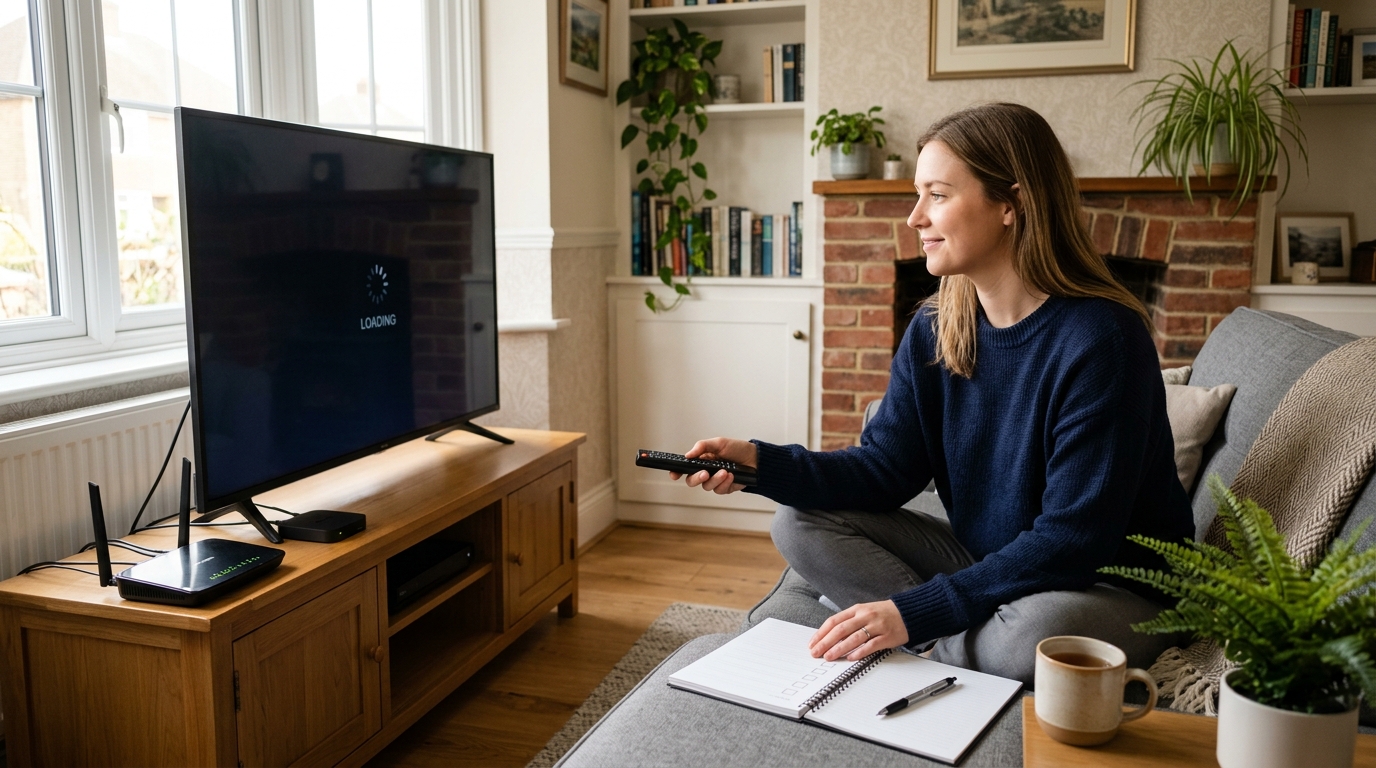
If your IPTV app has stopped working on your Amazon Fire TV Stick, do not assume your subscription has expired or your provider is offline. The cause could be a temporary Firestick glitch, a weak Wi-Fi connection, an app problem, incorrect login details, or a recent software change. Work through these checks in order to identify the likely cause before changing settings or reinstalling anything.
1. Restart Your Firestick
A simple restart can clear temporary system errors that stop an app from opening, loading channels, or playing video.
- Open Settings on your Fire TV Stick.
- Select My Fire TV or Device & Software, depending on your model.
- Choose Restart. If that option is unavailable, unplug the Firestick from power, wait around 30
seconds, and reconnect it.
When it starts again, open your IPTV app and test a channel. Avoid repeatedly unplugging the device while it is updating.
2. Check Your Internet Connection
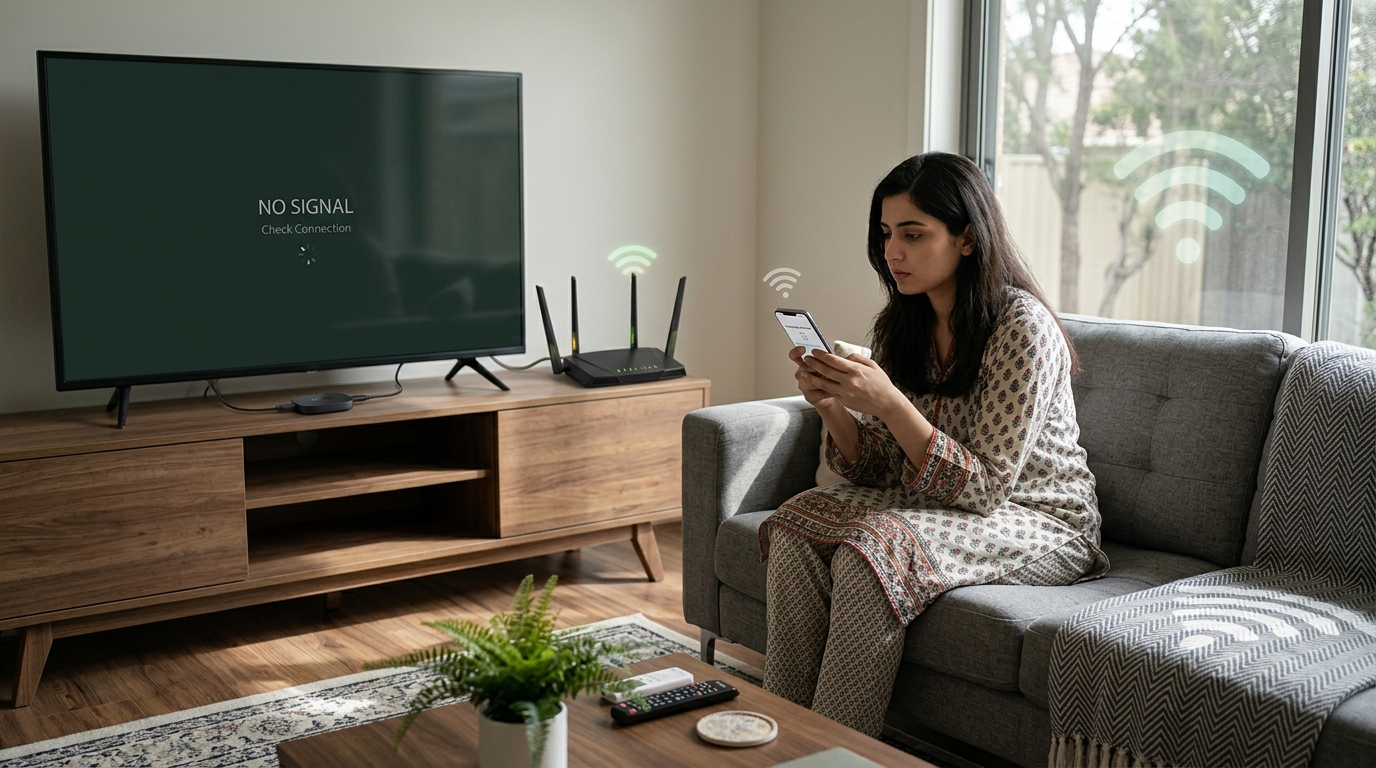
Your Firestick may appear connected to Wi-Fi even when the connection is unstable or internet access has dropped. Open the Fire TV network settings and check the connection status. If possible, test another streaming app on the same device.
If other apps also struggle, restart your router and wait until the internet connection returns. If you can, temporarily move the Firestick closer to the router or connect to a more reliable Wi-Fi band. A speed test can be useful, but stable performance matters as much as the headline speed.
3. Clear the IPTV App Cache
A damaged or oversized cache can sometimes cause an app to freeze, crash, or load slowly. On many Fire TV models, the path is:
Settings → Applications → Manage Installed Applications → Select your IPTV app → Clear cache.
Menu names can vary slightly by software version.
Try the app again after clearing the cache. Be careful with Clear data: unlike clearing cache, it can remove local settings and may require you to enter your login details or playlist again. Make sure you have the correct details before using it.
4. Check for App Updates and Device Compatibility
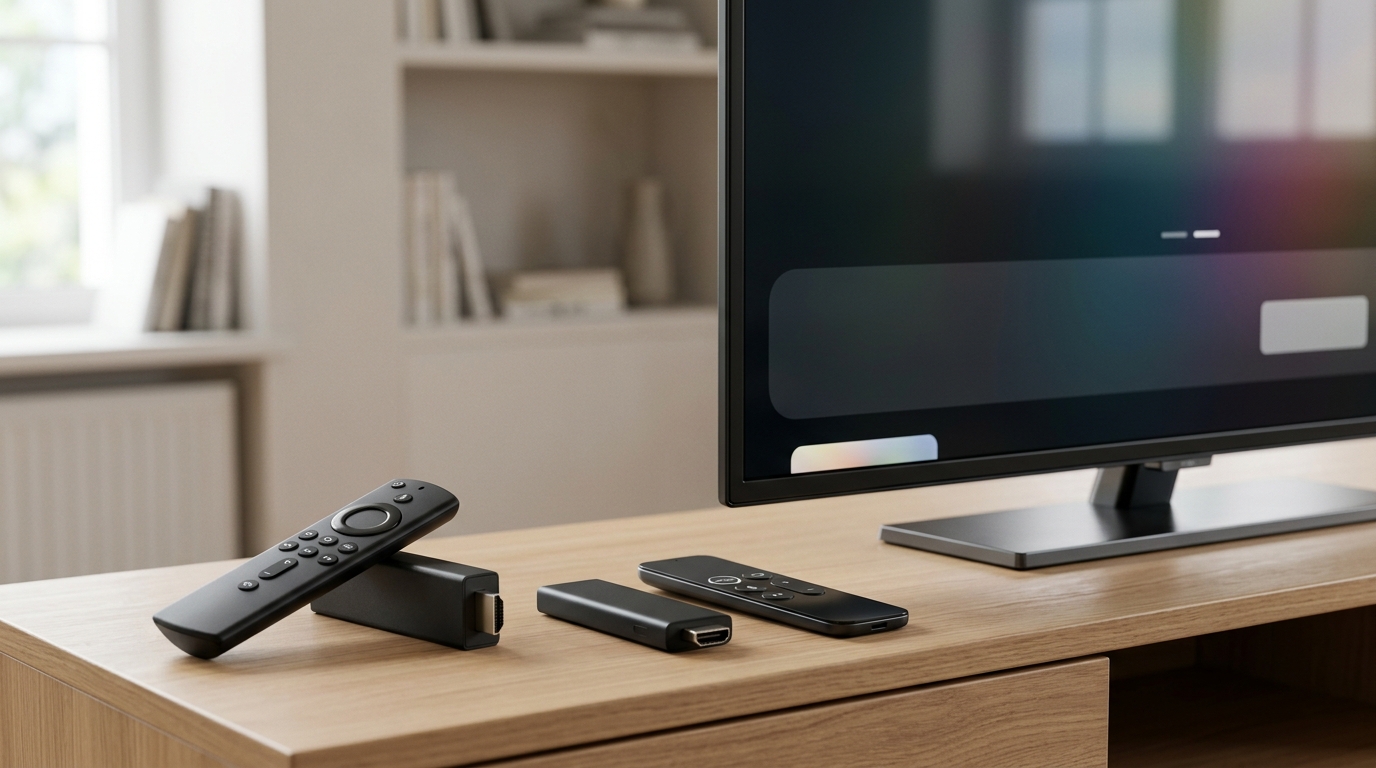
An app may stop working properly after an update, or an older app version may no longer be compatible with your device. Check whether an update is available through the app store or the app developer’s official instructions. Also install any available Fire TV system updates.
Compatibility is especially important on newer Fire TV hardware. Amazon has used different operating systems across its devices, including Fire OS and Vega OS. Do not assume that an app or installation method supported on one Fire TV model will work on every model. Confirm compatibility with the app developer and use official installation sources where available.
If an app that you installed manually suddenly stops installing or opening, check the device model, system version, and the app developer’s current guidance before changing security settings.
Installation instructions can differ by device and software version.
5. Check Your Login Details and Playlist
If the app opens but displays an authentication error, an empty channel list, or a playlist-loading message, check the information entered into the app. Depending on the service, you may need a username and password, a server address, a playlist URL, or device-specific details.
- Check for typing errors, extra spaces, or an outdated server address.
- Confirm that the subscription or trial is still active.
- If you use a playlist URL, confirm that it has not changed or expired.
- If the app displays a device ID or MAC address, send the exact details requested by the app’s
official support team.
Do not post passwords, activation codes, or private playlist URLs publicly. If the details are correct but the playlist still fails, contact the service provider to check whether the account or server is experiencing a problem.
6. Test More Than One Channel
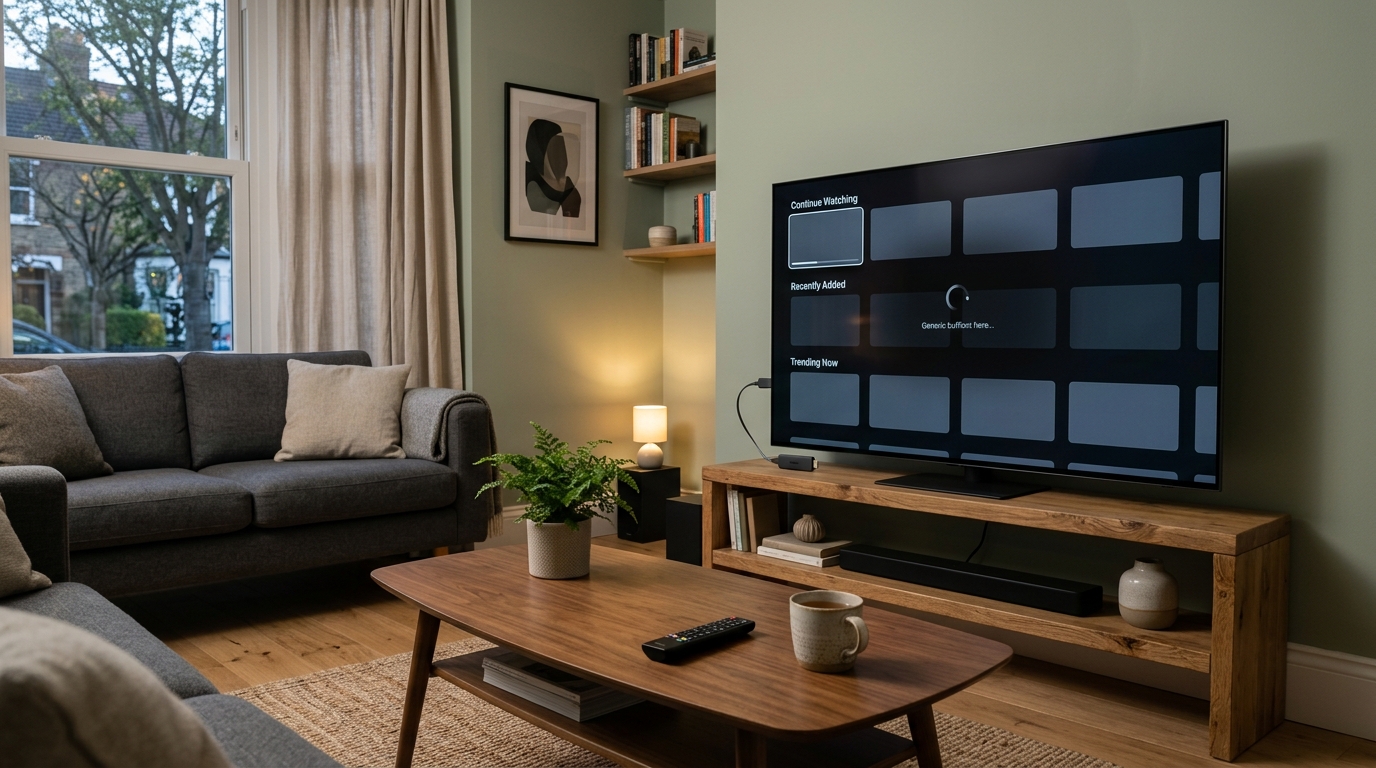
If one channel fails but others play normally, the problem may be limited to that channel or stream rather than the Firestick itself. Try several channels and, if available, another category or video-on-demand item.
If every channel fails, check the internet connection, app, account status, and service status. If only one channel or programme is affected, report the specific channel and approximate time to your provider rather than resetting the entire device.
7. Restart Your Router and Improve Wi-Fi
Wireless interference, a busy home network, or a router that needs restarting can lead to buffering and disconnections. Restart the router using the manufacturer’s recommended procedure, then wait for the connection to stabilise before testing again.
If the problem continues, try moving the Firestick away from obstructions, reducing simultaneous heavy downloads, or using an Ethernet adapter if your setup supports one.
A VPN can affect routing and speed, but it is not a universal fix. Only test one if it is lawful where you are, compatible with your service, and permitted by the provider. Compare performance with and without it.
8. Check Available Storage
A Firestick with very little free storage may become sluggish or have trouble updating apps. Open Settings and review the installed applications. Remove apps you no longer use, and clear the cache of apps that are behaving badly.
Avoid deleting unfamiliar system components or installing unofficial cleaner tools. After freeing some space, restart the device and test the IPTV app again.
9. Check Whether the Problem Started After an Update
If the issue began immediately after an app or Fire TV update, note the exact error and check the app developer’s support page for known problems.
Do not factory-reset the Firestick as a first step. A reset can remove apps and settings, and it may not solve an issue caused by a service outage or incompatibility.
If an app update is available, install it from a trusted source. If no fix is documented, contact the app developer and provide your Fire TV model, software version, app version, and the steps that reproduce the problem.
10. Check Your Subscription and Service Status
When the device, internet connection, and app appear to be working, verify that the subscription is active and that the provider has not announced maintenance. A provider-side outage can affect playback even when your Firestick is functioning normally.
Use this quick guide to narrow down the likely cause:
| What you notice | What to check first |
|---|---|
| The app will not open | Restart Firestick; check app updates and compatibility. |
| All streaming apps are slow | Check Wi-Fi, router, and internet service. |
| Only one IPTV channel fails | Test other channels; report the affected stream. |
Recheck credentials, playlist details, and subscription
Login or playlist error status.
| Column 1 | Column 2 |
|---|---|
| The issue began after an update | Check official support notes and app compatibility. |
A Five-Minute Troubleshooting Checklist
Before making major changes, run through this short checklist:
- Restart the Firestick.
- Confirm that the internet works in another app.
- Restart the router if the connection is unstable.
- Clear the IPTV app cache.
- Test several channels rather than only one.
- Verify login details and subscription status.
- Check app and Fire TV software compatibility.
- Contact the app developer or service provider if the problem remains.
Frequently Asked Questions
Why is IPTV not working on my Firestick today?
Common causes include a temporary device glitch, unstable internet, an app error, incorrect login details, a service outage, or compatibility changes after an update. Restart the device, test another app, and then narrow down the issue using the checks above.
Why does IPTV buffer even when my internet is fast?
A high speed-test result does not guarantee a stable connection to every stream. Wi-Fi interference, congestion, routing, device performance, or problems with a particular stream can still cause buffering. Test another app and several channels to help isolate the cause.
Will clearing the cache delete my IPTV subscription?
Clearing cache normally removes temporary files, not your subscription itself. Clearing app data is different and may remove saved settings or login information, so use it only when you know how to restore the app.
Should I use a VPN if IPTV will not load?
Not necessarily. A VPN may improve or worsen performance depending on the route and service. First check the internet, app, account, and provider status. If you test a VPN, follow local law and the service’s terms, and compare the results.
My new Firestick does not support my IPTV app. What should I do?
Check the exact Fire TV model and operating system, then consult the app developer’s official compatibility guidance. Different Fire TV devices may use different operating systems, so an app or installation method that works on an older model may not work on a newer one.
Conclusion
When IPTV stops working on a Firestick, start with the simple checks: restart the device, verify the internet, clear the app cache, test multiple channels, and confirm your login and subscription details. If the problem began after an update, check official compatibility information before attempting a reset or reinstall.
If all other apps work and only one IPTV service is affected, contact the relevant provider with the error message and device details. If you are considering a streaming subscription, review the available plans at https://folioiptv.com/plans and confirm that the service is properly licensed for the content and locations you intend to use.